Connect MonoDesk to Zapier
Link MonoDesk to thousands of apps: leads from your forms, invoices into your accounting, messages into Slack.
Connect MonoDesk to Zapier
Zapier connects MonoDesk to thousands of other apps, so work can move between them without copy and paste. A form entry can land as a new lead, a new client can post to Slack, and invoice details can go to your accounting tool.
You’ll find it under Settings → Integrations.
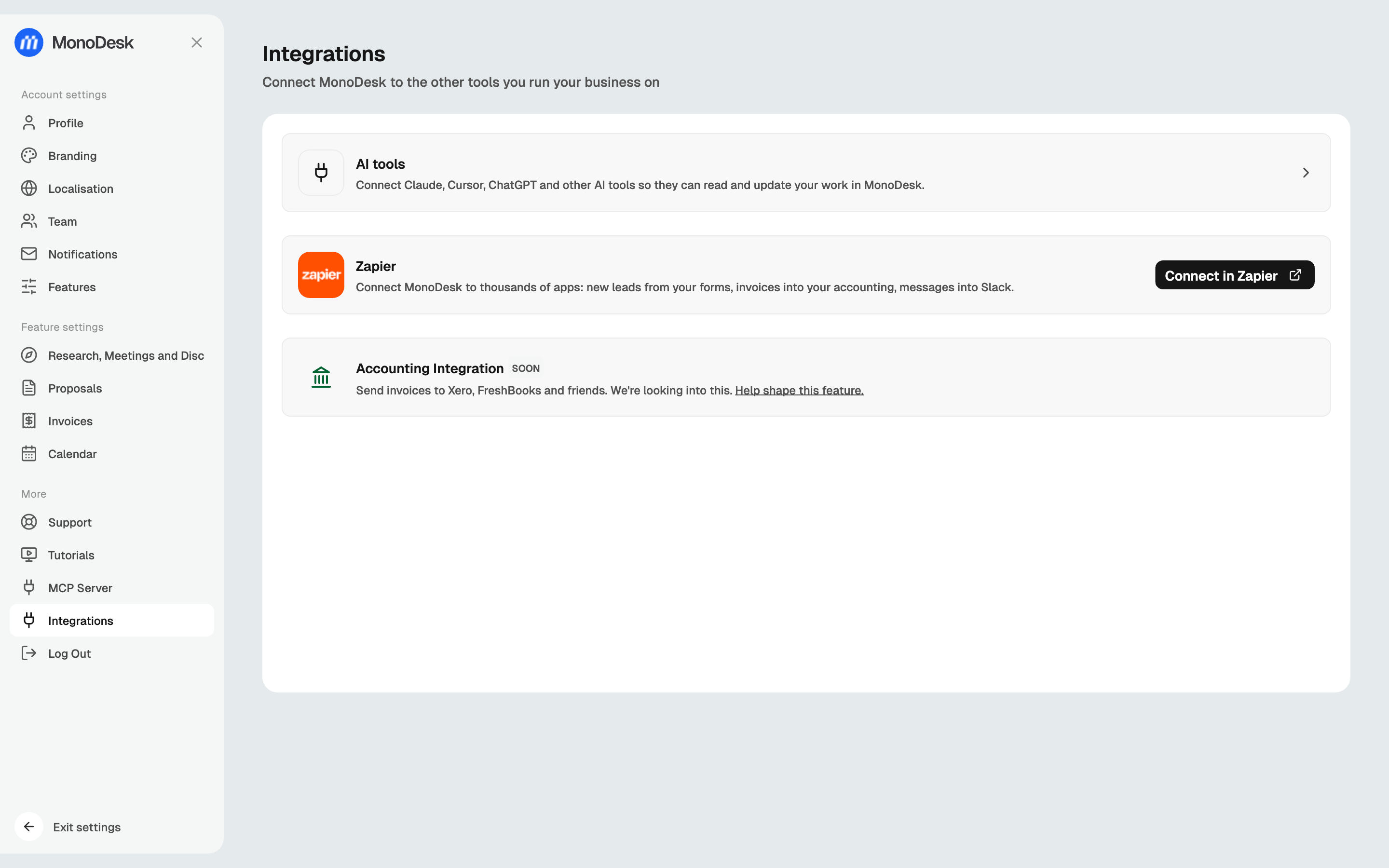
Connect MonoDesk to Zapier
- Go to Settings → Integrations and choose Connect in Zapier on the Zapier card. Zapier opens in a new tab.
- Sign in to Zapier, or create a free Zapier account.
- Create a Zap and pick MonoDesk as the trigger or action app.
- When Zapier asks you to connect an account, sign in to MonoDesk and approve access.
How Zaps work
Every Zap has a trigger (something happens in one app) and one or more actions (Zapier does something in another). MonoDesk can play either part:
- As a trigger: something new in MonoDesk, like a client, sets off a step in another app.
- As an action: something that happens elsewhere creates a client, lead, task or planner time block in MonoDesk.
Zapier shows the full list of MonoDesk triggers and actions when you add a step.
Ideas to start with
- A booking in Cal.com or an entry in your website form → create a lead in MonoDesk, ready for Discover
- A new client in MonoDesk → a message in your team’s Slack channel
- A message you star in Slack → a task on a project board
- An invoice in MonoDesk → a matching record in your accounting tool
Turning a Zap off
Pause or delete the Zap in Zapier. To disconnect MonoDesk completely, remove the MonoDesk connection under My Apps in Zapier.
Want AI tools like Claude or ChatGPT to work with MonoDesk instead? See Connect Claude, ChatGPT and other AI tools.
For what this looks like across MonoDesk, see Zapier.
Last updated September 30, 2026