Customise your MonoDesk menu
Choose which areas and items show in your sidebar, so it only has what you use.
Customise your MonoDesk menu
Your sidebar doesn’t have to show everything MonoDesk can do. If you don’t send invoices or track time, hide them and keep the menu to the parts you use.
Open Customise
Click Customise near the bottom of the sidebar, just below Notifications. A panel called Features and sidebar opens next to it.
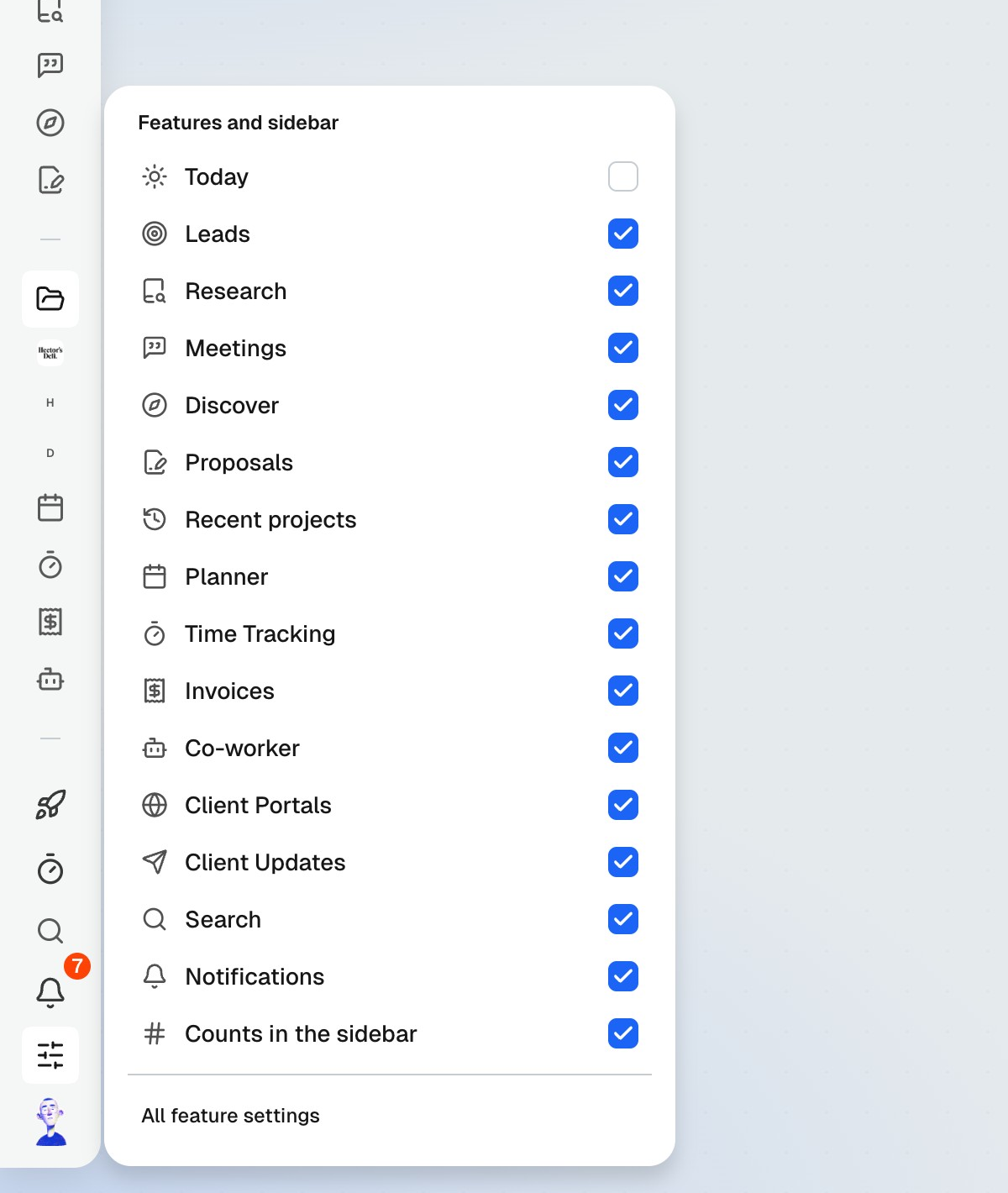
The panel lists every area and item you can switch, in the same order as your sidebar.
Show or hide an item
Tick an item to show it, or untick it to hide it. The sidebar updates straight away.
The list includes:
- Areas, like Today, Leads, Research, Meetings, Proposals, Planner, Time Tracking, Invoices, Client Portals and Client Updates
- Sidebar items, like Recent projects, Co-worker, Search, Notifications and the counts next to sidebar items
Dashboard, Projects and Clients are always on, so they aren’t in the list.
Click anywhere outside the panel, or press Esc, to close it.
What hiding does
Hiding something only changes your own sidebar, in this workspace. Your teammates and your other workspaces stay as they are, and nothing is deleted. Tick it again any time to bring it back.
Hiding a sidebar item doesn’t switch off what’s behind it. Hide Notifications and they still arrive. Hide Search and the keyboard shortcut still works.
Something greyed out?
If an item is greyed out with “Turned off by your admin”, an admin has switched that area off for you. Ask them to turn it back on in Settings, Team.
You also can’t hide Time Tracking while a timer is running. Stop the timer first.
More options in Settings
Click All feature settings at the bottom of the panel to open Settings, Features. It has the same list, plus the option to hide the Customise button itself. For the full details, see Choosing which features show.
Last updated October 15, 2026