
Host a meeting and get the recap
Take notes under each question as the meeting runs, then get a written recap of what was agreed.
Host a meeting and get the recap
Once your agenda is drafted, use the same meeting to take notes as it happens and get a recap at the end.
Host the meeting
Open the meeting and go to the Host Meeting tab. Your agenda questions are listed in order, each with a space for the answer.
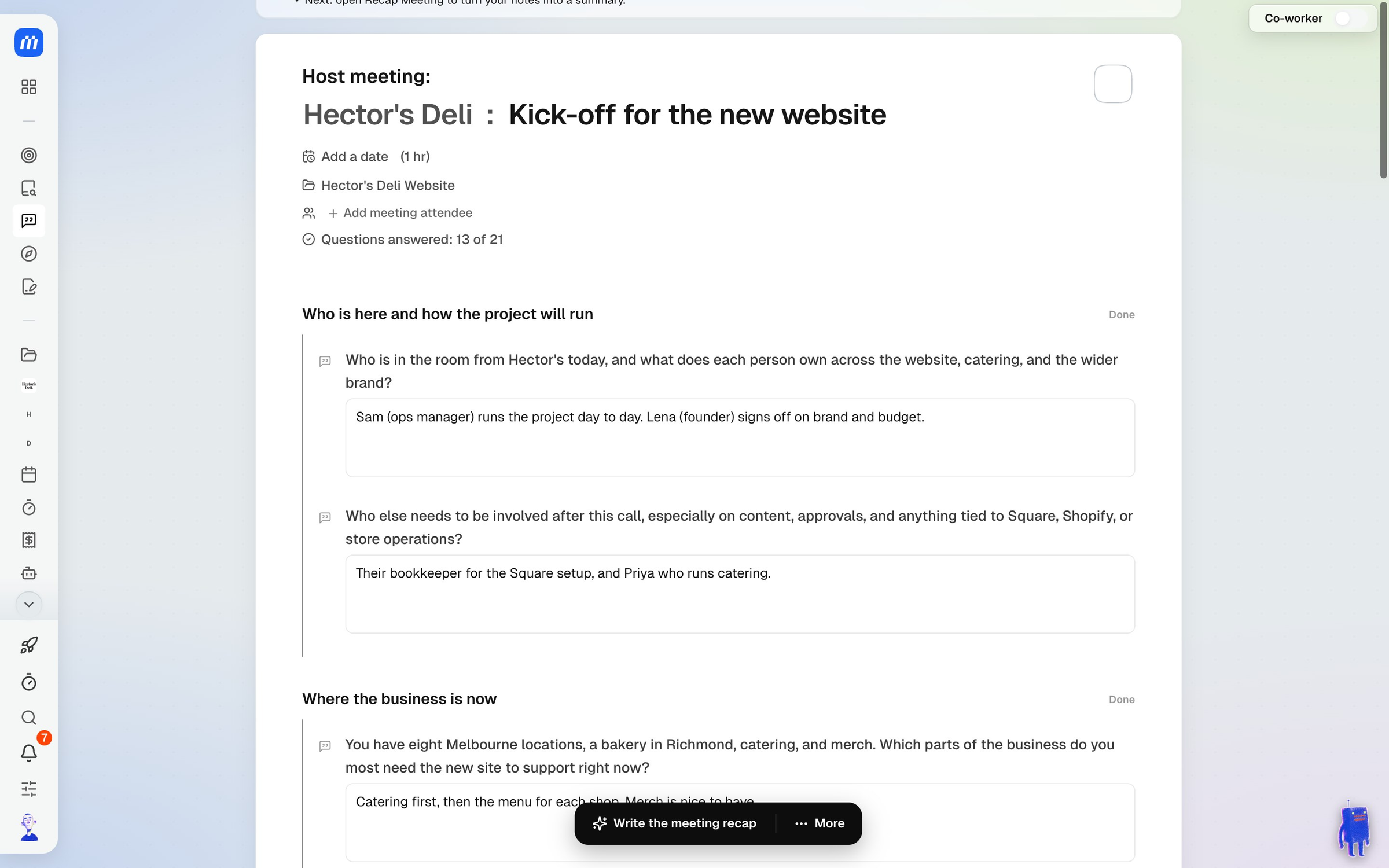
- Type notes or answers under each question as the conversation goes. They save as you type.
- Questions answered at the top shows how much you’ve covered.
- Need a follow-up question? Ask your Co-Worker while the meeting is on.
You don’t have to answer every question. Skip what didn’t come up.
Meetings doesn’t record audio or transcribe the call. The recap is written from the notes you take.
Write the recap
When the meeting’s over, click Write the meeting recap. MonoDesk reads your notes and writes up what was agreed. It takes a moment, and you can leave the page while it works.
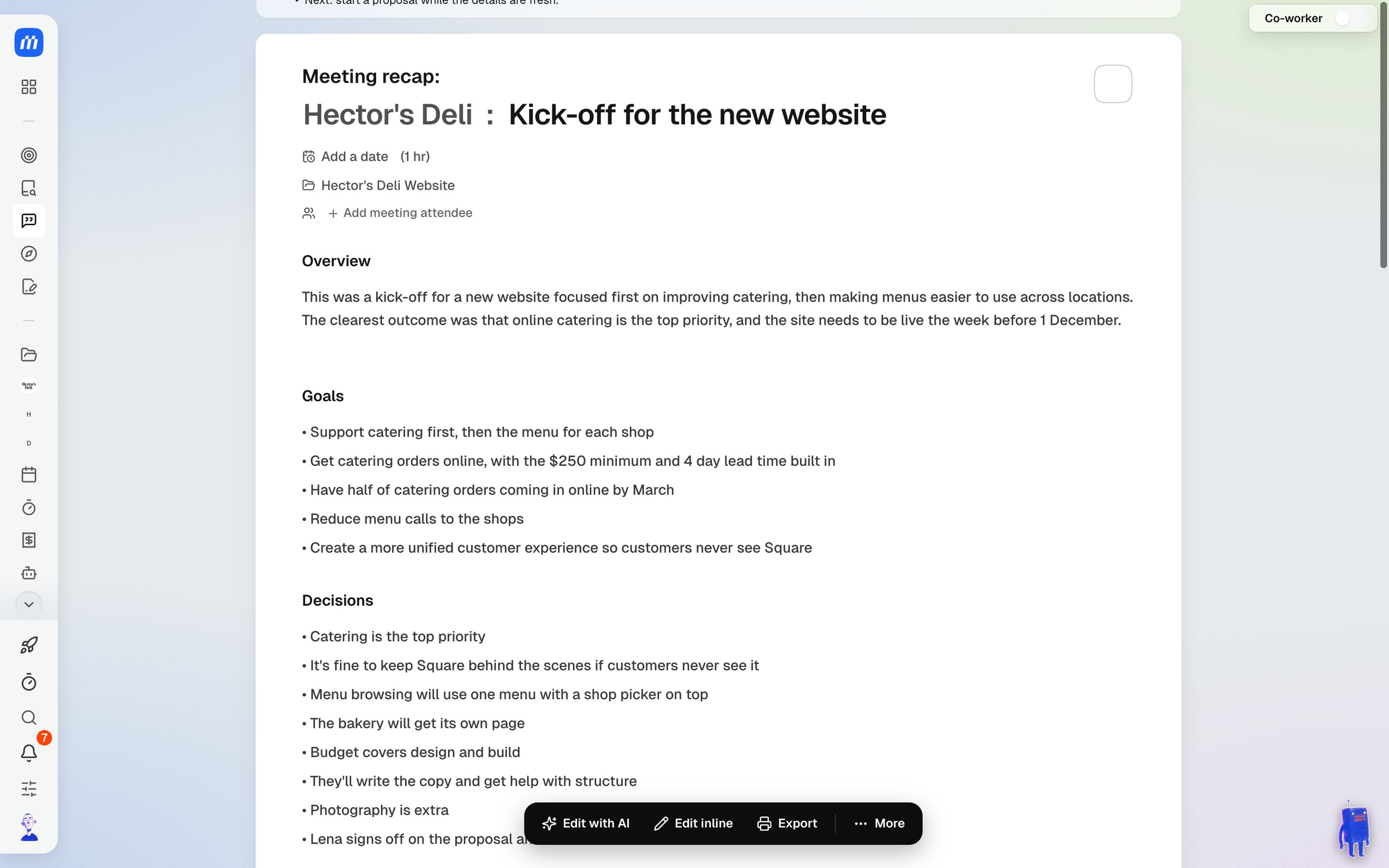
The recap covers:
- An overview of the meeting
- Goals and decisions
- The type of work, and what’s in and out of scope
- Timeline and budget
- What they said, in their own words
- Risks, opportunities and open questions
- Next steps
Met somewhere else?
If the meeting happened without MonoDesk open, go to the Recap Meeting tab, open More and choose Paste notes instead. Paste your notes and MonoDesk writes the same recap from them.
Edit and share the recap
Check the recap and fix anything that’s off:
- Edit inline to change the text yourself
- Edit with AI to ask your Co-Worker to rewrite a section
- Export to share it with the people who were there
If your notes change, More has Write it again.
The recap is a good starting point for the proposal, while the details are fresh.
For what this looks like across MonoDesk, see Meetings.
Last updated October 15, 2026