Add your first client
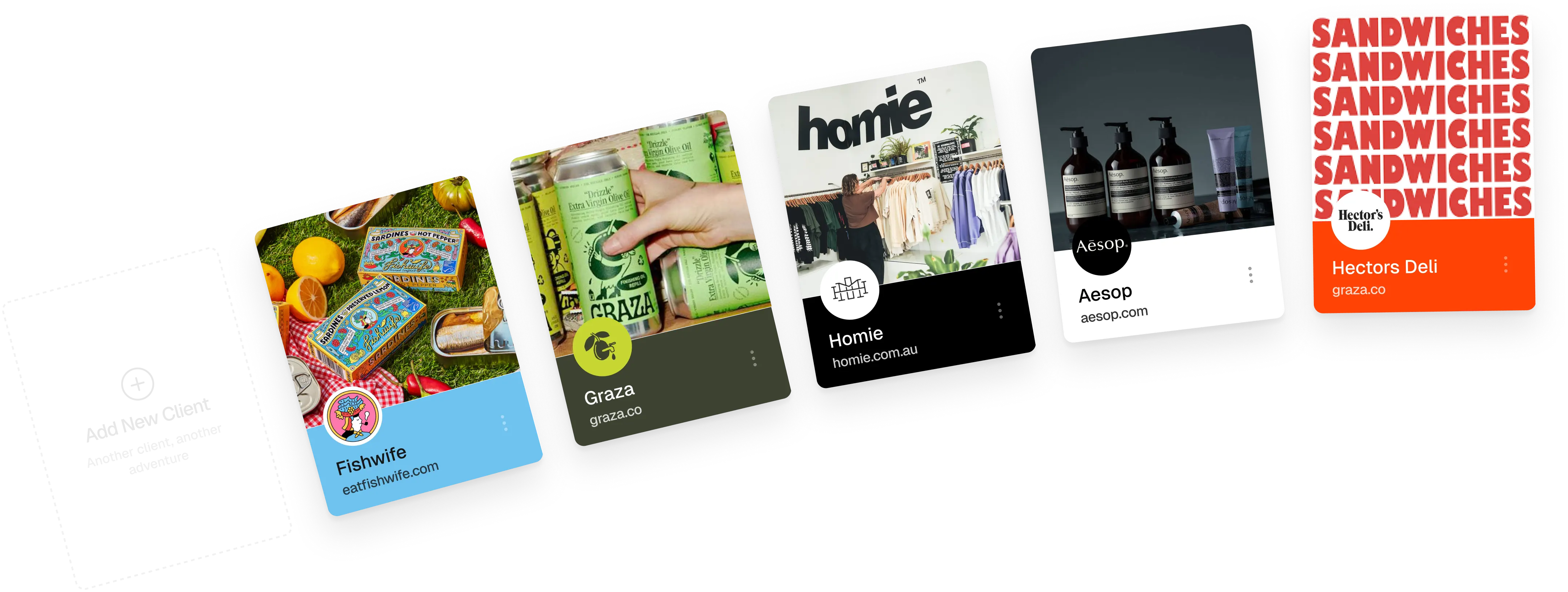
Type a company name or paste a URL and MonoDesk builds the client profile, brand colours and all.
Add your first client
Clients are the heart of MonoDesk: projects, portals, proposals and invoices all hang off them. Adding one takes about ten seconds.
From a website URL
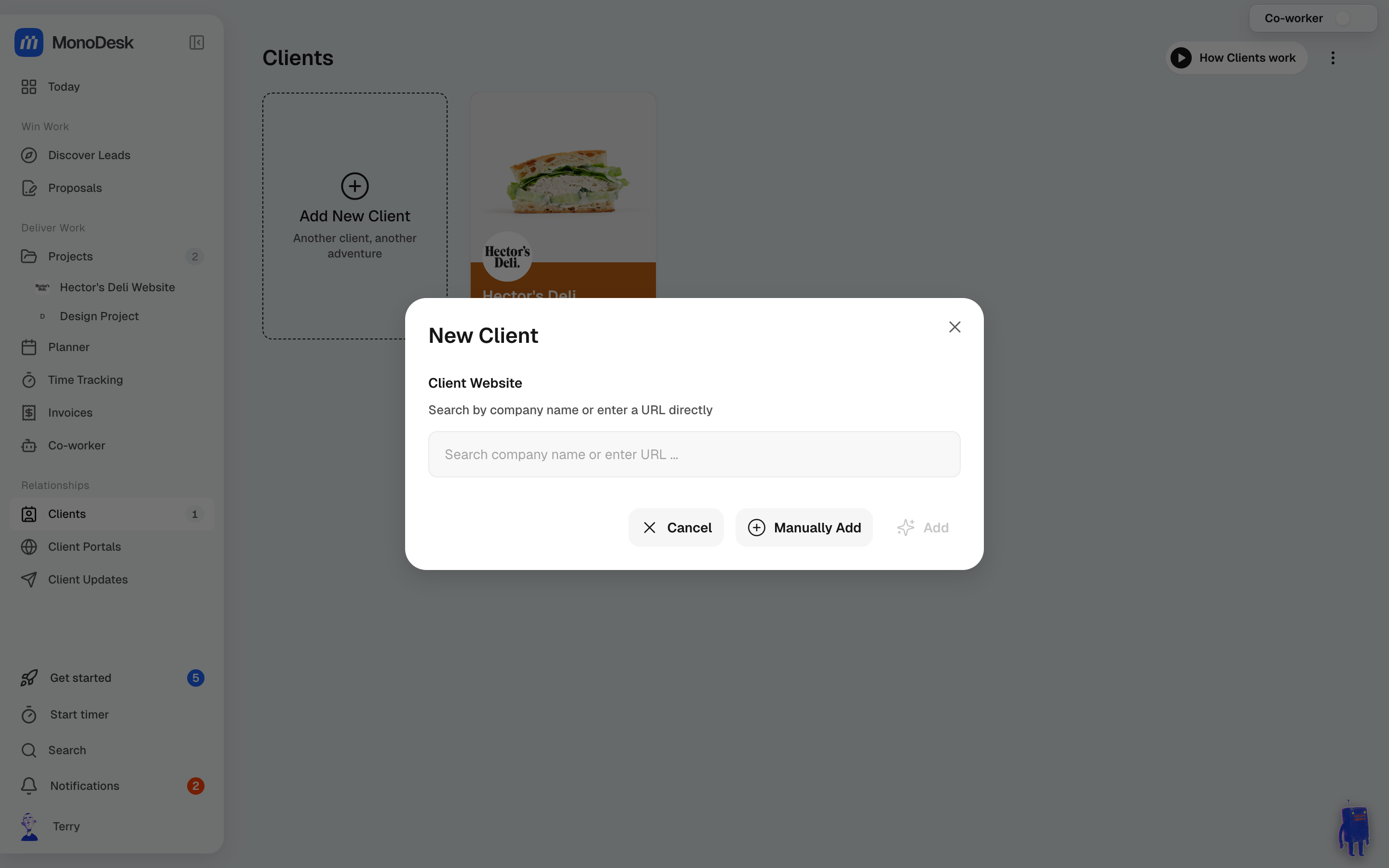
- Go to Clients in the sidebar
- Click Add New Client
- In the Client Website field, search by company name or paste their URL directly
- Click Add
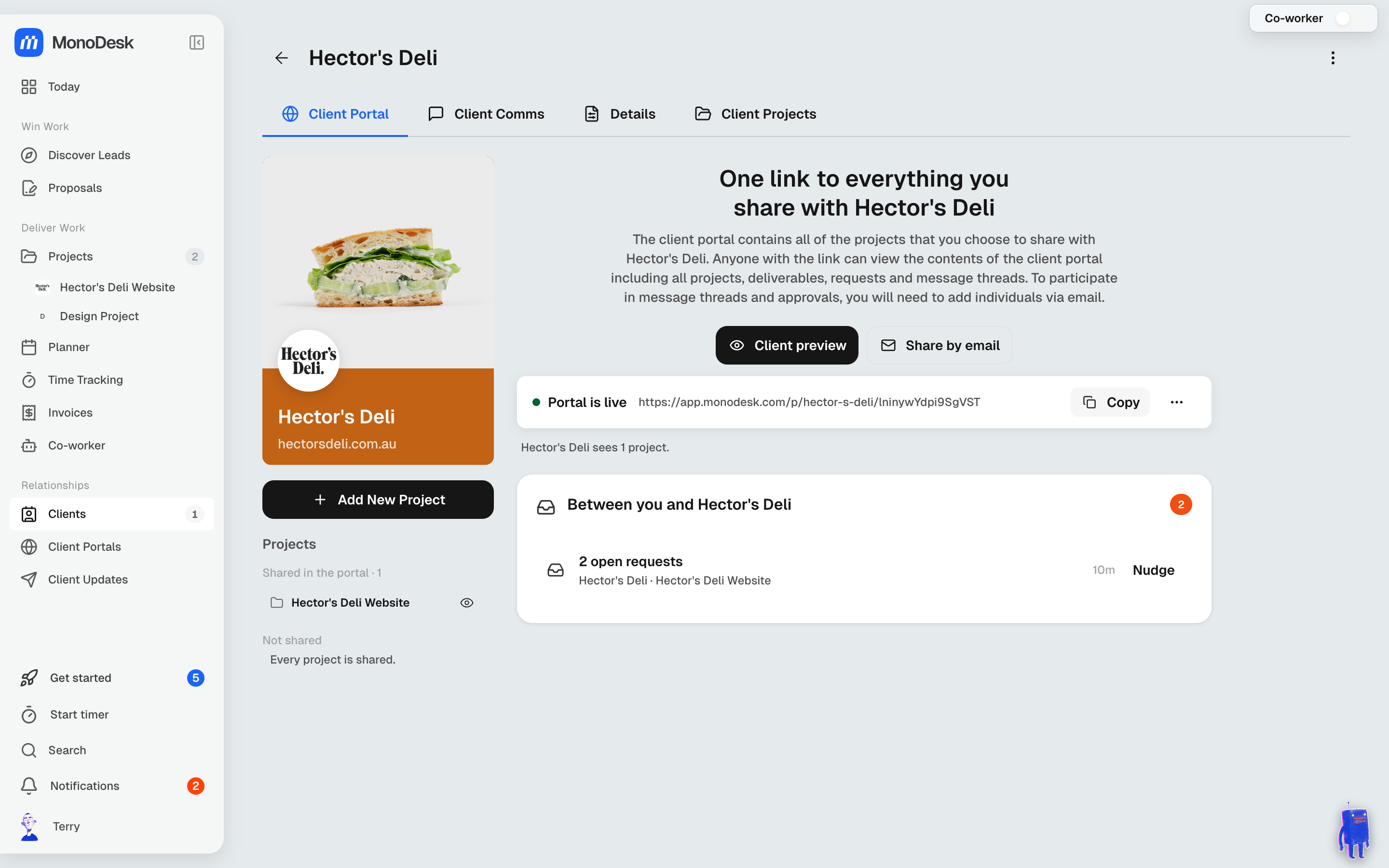
MonoDesk visits the site and builds the profile for you: logo, cover image and the client’s brand colours, extracted automatically. No forms to fill in.
Adding manually
No website, or a brand-new client? Click Manually Add in the same modal and fill in the name yourself. You can add the rest later on the client’s Details tab.
Prefer video? Watch Setting up your first client.
What you get
A rich client profile with four tabs (Client Portal, Client Comms, Details and Client Projects), ready to hang your first project off.
Last updated September 8, 2026