Connect Claude, ChatGPT and other AI tools (MCP)
Use the MonoDesk MCP server so Claude, ChatGPT, Cursor and other AI tools can read and update your work.
Connect Claude, ChatGPT and other AI tools (MCP)
MonoDesk has an MCP server, so the AI tools you already use can work with your clients, projects, tasks and time. Ask Claude what’s on your plate this week, or have ChatGPT add a card to a project, without opening MonoDesk.
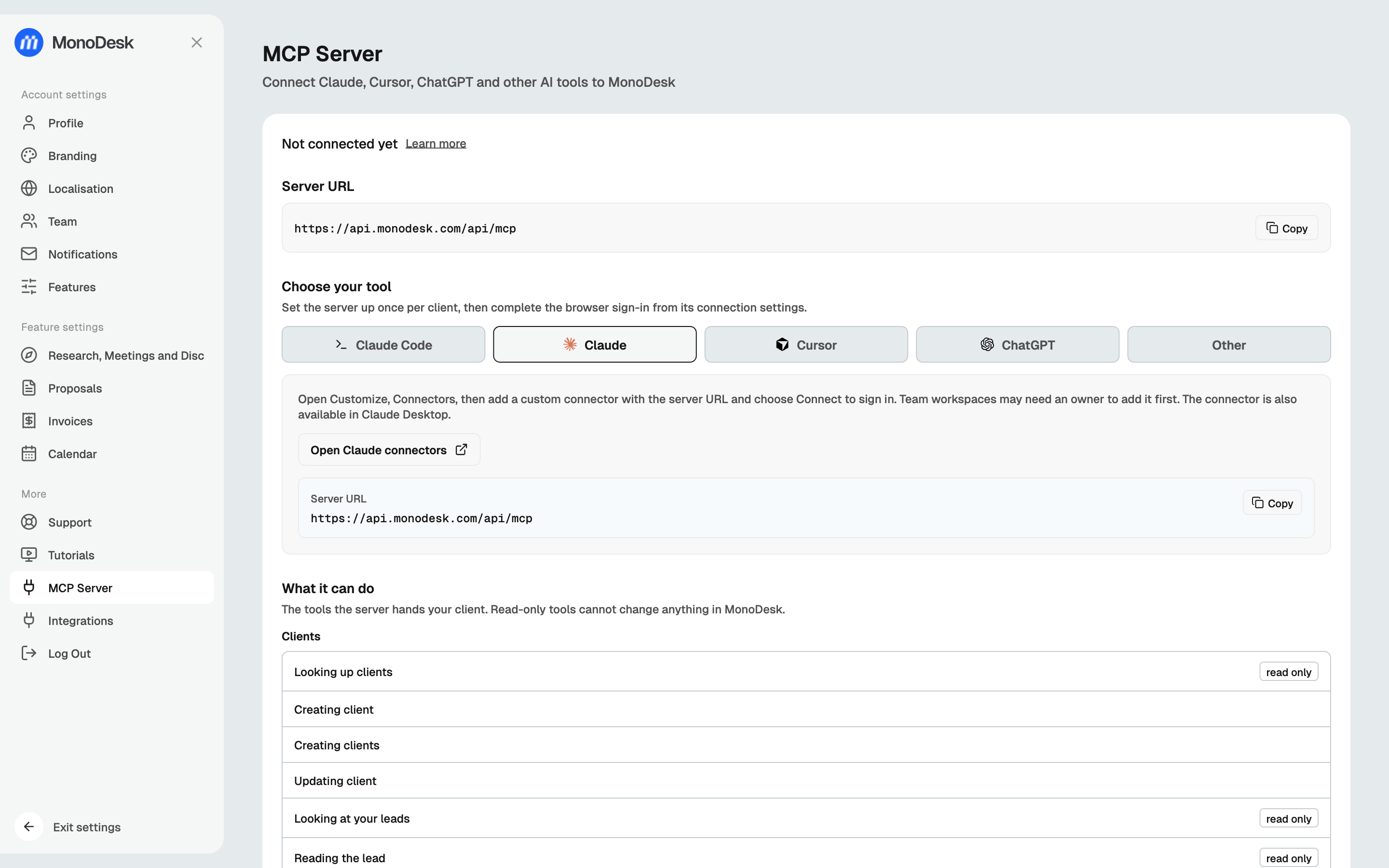
Open Settings → MCP Server (or Settings → Integrations → AI tools) to set it up.
The server URL
Every tool connects to the same address:
https://api.monodesk.com/api/mcpUse the Copy button next to it. You set the server up once in each tool, then sign in to MonoDesk from that tool’s connection settings. The page shows Not connected yet until you do.
Pick your tool
Under Choose your tool, pick the one you use and follow the steps shown.
- Claude: in Claude, open Customize → Connectors, add a custom connector with the server URL and choose Connect to sign in. The Open Claude connectors button takes you straight there. Team workspaces may need an owner to add the connector first. Once added, it works in Claude Desktop too.
- ChatGPT: on the web, turn on developer mode under Settings → Apps → Advanced Settings. Then choose Apps → Create, paste the server URL and select OAuth. Scan the tools, sign in, then create the app. Whether you can do this depends on your ChatGPT plan and workspace permissions.
- Claude Code: run the command shown in a terminal (
claude mcp add --transport http MonoDesk https://api.monodesk.com/api/mcp), open Claude Code, use/mcpto select MonoDesk and sign in. - Cursor: Install in Cursor opens Cursor and adds the server for you, or you can paste the config shown into
~/.cursor/mcp.json. Approve the MonoDesk sign-in the first time Cursor calls a tool. - Other: there are ready-made configs for VS Code, Windsurf and Codex. Any other tool that supports streamable HTTP and OAuth works with the server URL alone.
Sign in and approve
The first time your tool connects, a MonoDesk sign-in opens in your browser. Approve it there, then go back to your tool. Nothing works until you’ve approved it.
What your AI tool can do
What it can do on the settings page lists every tool the server hands your AI, grouped by Clients, Projects, Tasks, Team, Files, and Search and help. Anything marked read only can look but can’t change anything in MonoDesk. The rest can create and update things for you: clients, leads, projects, tasks, subtasks, labels, comments and time logs, plus attaching files. Archived items can be restored, and nothing is permanently deleted.
It works in the same workspace and with the same access you have when you sign in.
Things to try
- “What’s on my plate this week?”
- “Add a card to the website project for the homepage copy and assign it to me”
- “Log 45 minutes on the logo review”
- “What did I finish last week?”
- “Summarise the comments on the logo review task”
- “Create a project for Acme with these five tasks”
If it doesn’t work
- Nothing happens after you add the server: look for the MonoDesk sign-in in your browser and approve it.
- It stops working after about an hour: access tokens expire. Most tools refresh on their own. If yours shows a 401 error, disconnect the server and connect it again.
- The server doesn’t show up after an install link: check your tool’s MCP settings for MonoDesk. If it’s missing, copy the config from the settings page. If it’s stopped, start or restart it there.
Removing access
Access lives with your AI tool, so remove the MonoDesk connector or server in that tool to disconnect it. There isn’t a list of connected tools to revoke from inside MonoDesk yet.
For what this looks like across MonoDesk, see MCP.
Last updated September 30, 2026