Plan a meeting
Tell MonoDesk who the meeting is with and what it covers, and it drafts the agenda.
Plan a meeting
Meetings gives you an agenda before a client meeting and a recap after it. This article covers the first part: planning the meeting and drafting the agenda.
Don’t see Meetings in your sidebar? Your workspace may still use Discover. See Run the call with Meeting Host instead.
Plan the meeting
Open Meetings in the sidebar and click Plan a meeting.
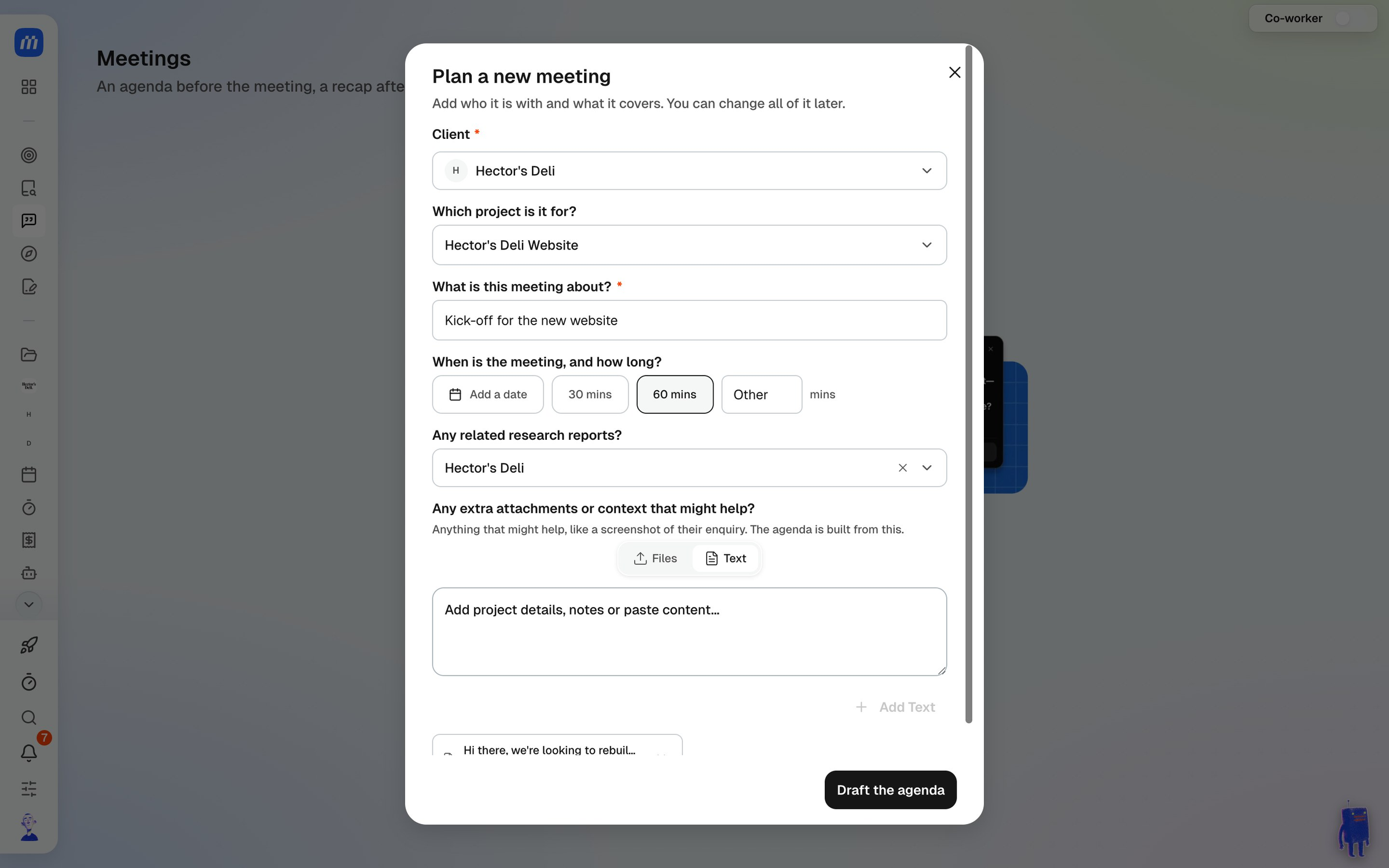
- Choose the Client. This is required.
- Pick Which project is it for? if the meeting belongs to one. The meeting then shows up on that project’s Meetings tab.
- Say What is this meeting about?, for example “Kick-off for the new website”.
- Set When is the meeting, and how long? Add a date, then pick 30 or 60 minutes or type your own length.
- Under Any related research reports?, attach a research report if you have one.
- Under Any extra attachments or context that might help?, add Files or paste Text, like the client’s enquiry email or brief. Click Add Text to keep what you pasted.
- Click Draft the agenda.
Everything you add here can be changed later.
Check the agenda
MonoDesk drafts the agenda from what you sent and any research attached. It’s split into sections, with questions timed to fit the length of the meeting.
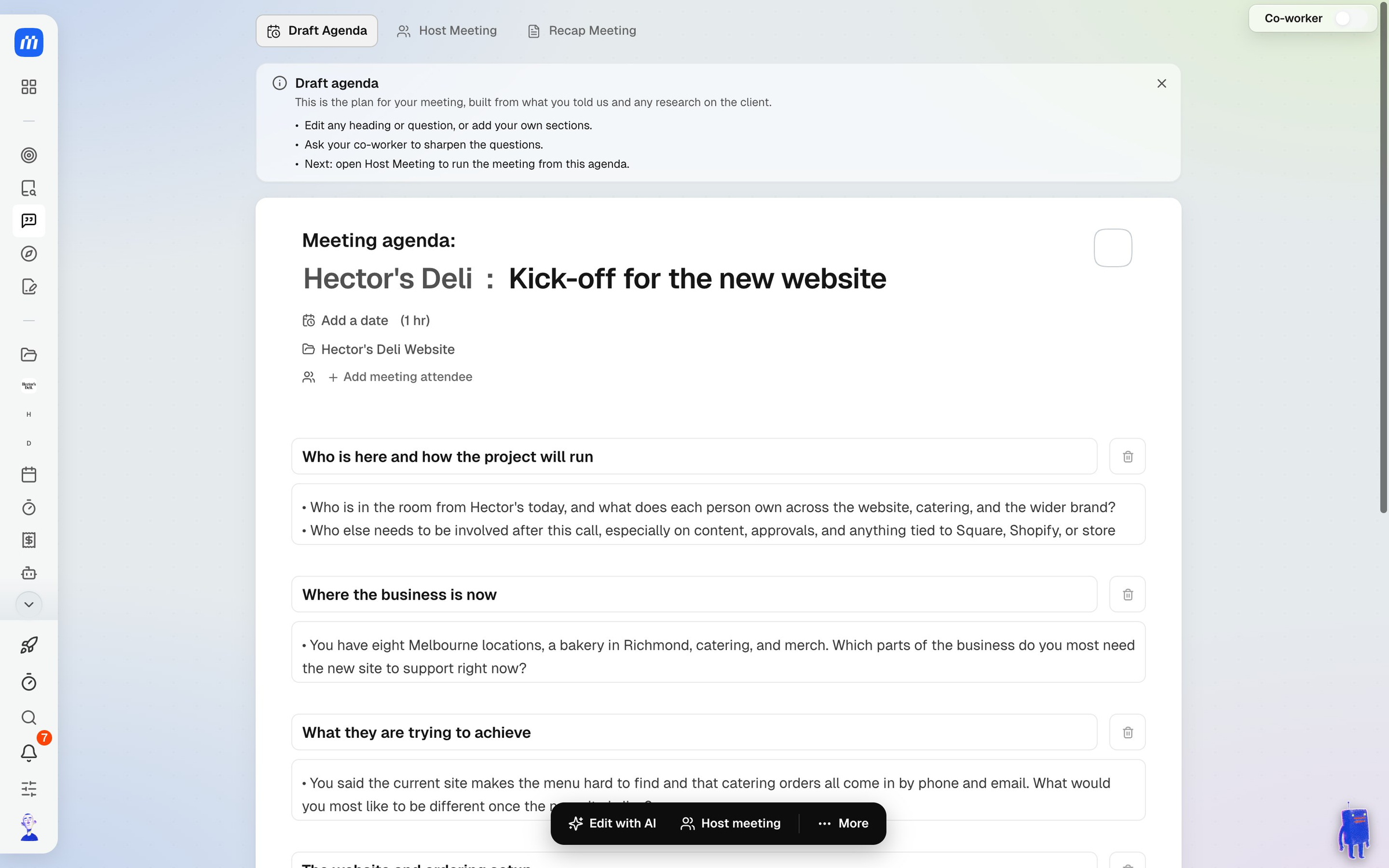
The questions are specific to the client. If their enquiry mentioned catering orders going missing, expect a question about that rather than “tell me about your business”.
The agenda is yours to change:
- Click any heading or question to edit it
- Add your own sections with Add section
- Use Edit with AI to ask your Co-Worker to sharpen the questions
- If the agenda runs long, More offers to fit it to the meeting length
When you’re ready, click Host meeting. See Host a meeting and get the recap.
Find your meetings
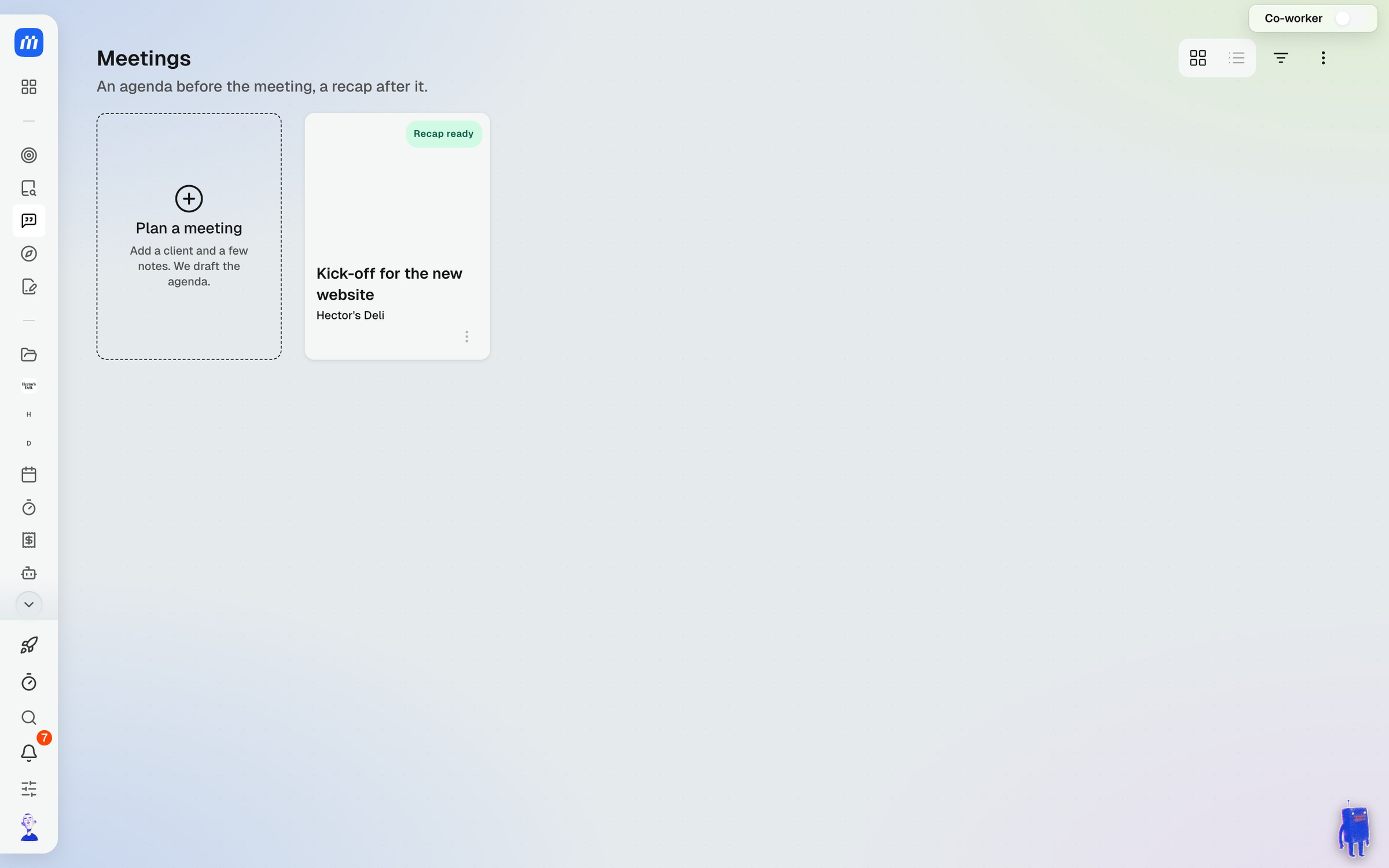
Every meeting is listed under Meetings, with its status, like Ready or Recap ready.
For what this looks like across MonoDesk, see Meetings.
Last updated October 15, 2026